
Personas
Left to itself, AI writes like AI. A persona is how you stop that. You describe how you write once, your tone, the words you never use, a few posts you’re proud of, and every AI draft you ask for can follow it.
Find them under Personas in the workspace sidebar, right below Signatures. Members need the Personas permission to use the page.
How many you get
Section titled “How many you get”| Plan | Personas per workspace |
|---|---|
| Free | none |
| Starter | 1 |
| Creator | 3 |
| Pro | 10 |
| Agency | 50 |
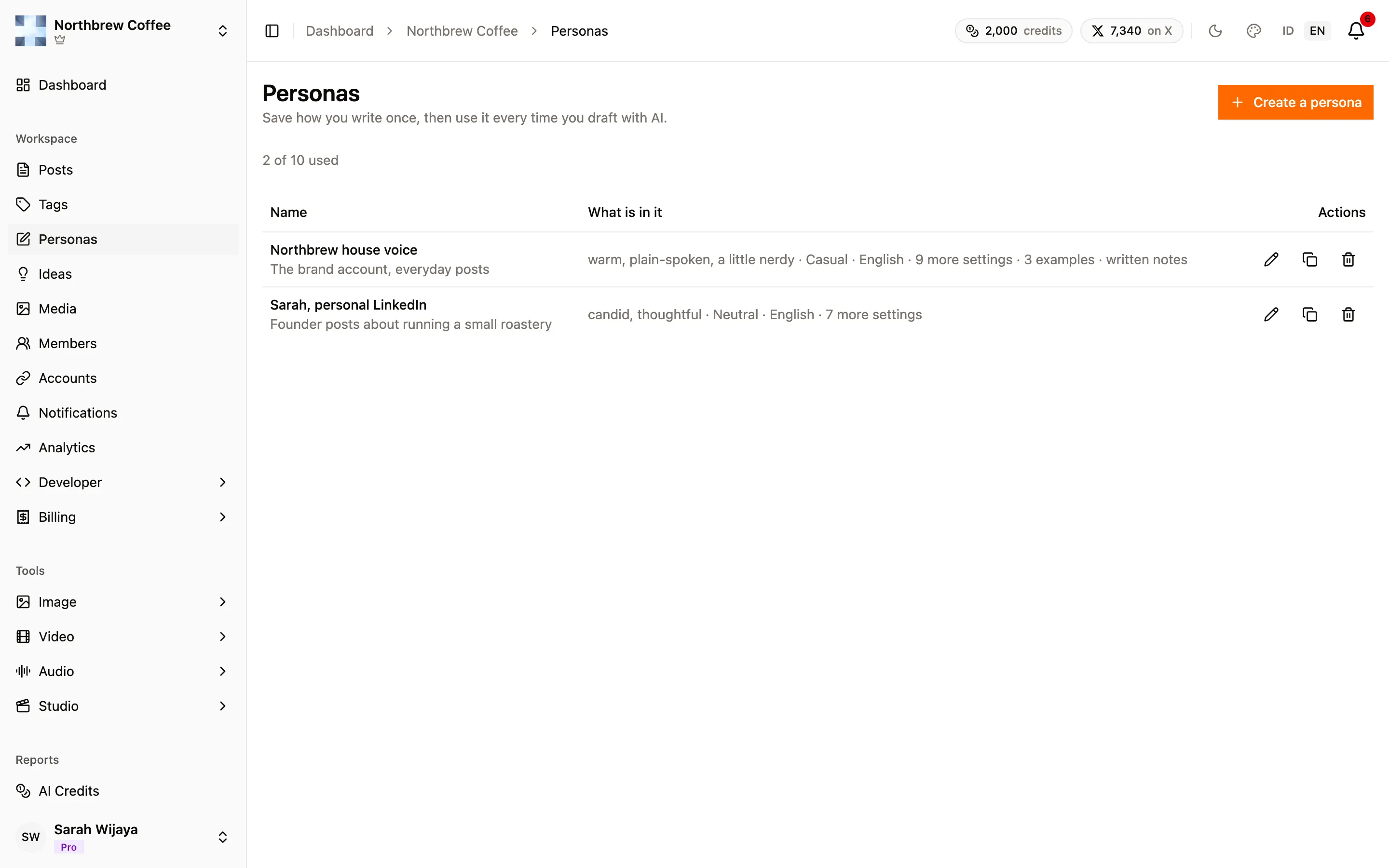
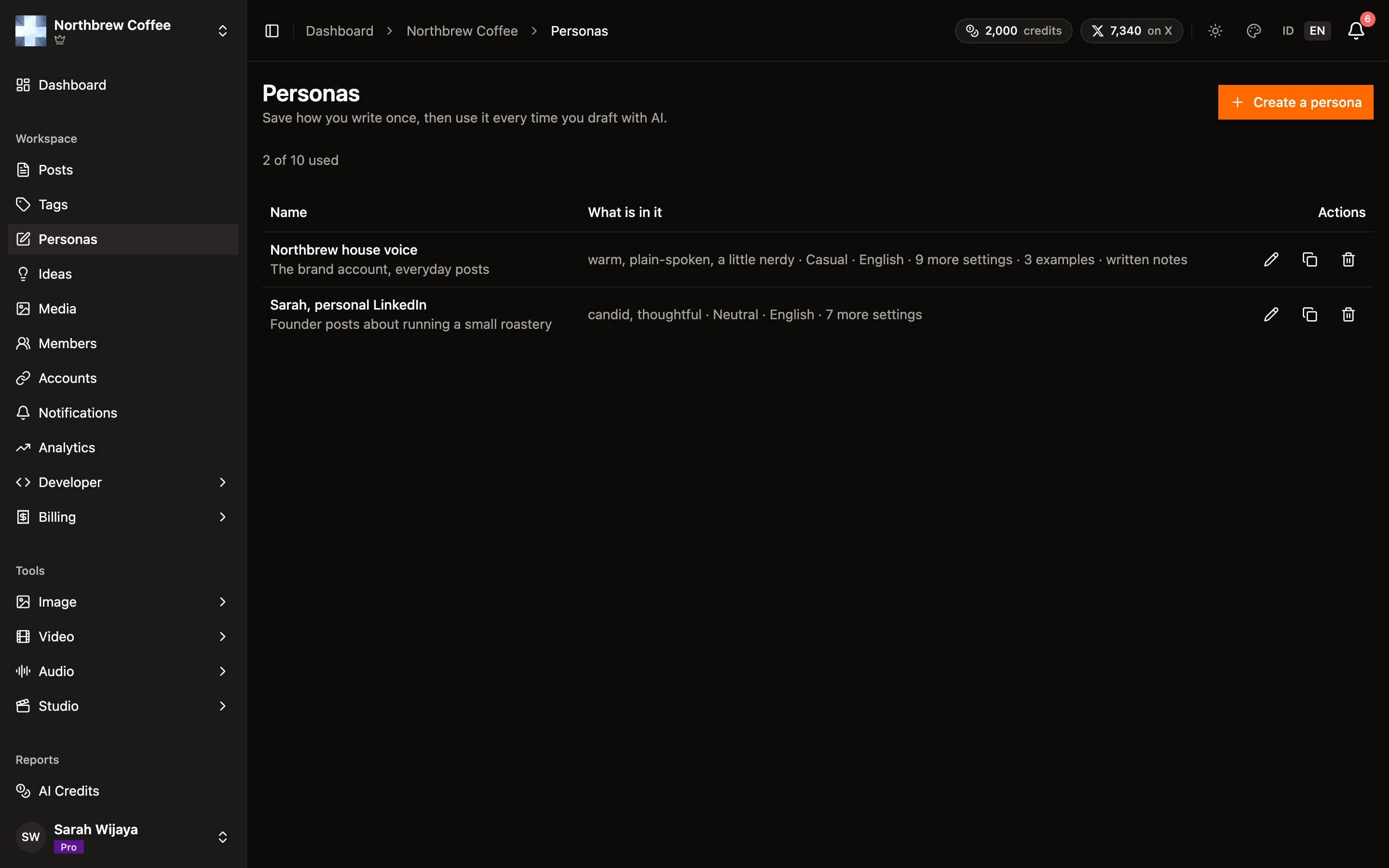
The page shows where you stand, like “2 of 3 used”. At the limit, Create a persona is disabled until you delete one.
Make one
Section titled “Make one”Press Create a persona. Give it a name and, if you like, a short description of what it’s for. “Personal LinkedIn” and “Brand account, launches” are more useful than “Persona 1” once you have a few.
Everything else lives on three tabs, and every field is optional. Fill in what you care about and leave the rest.
Quick setup
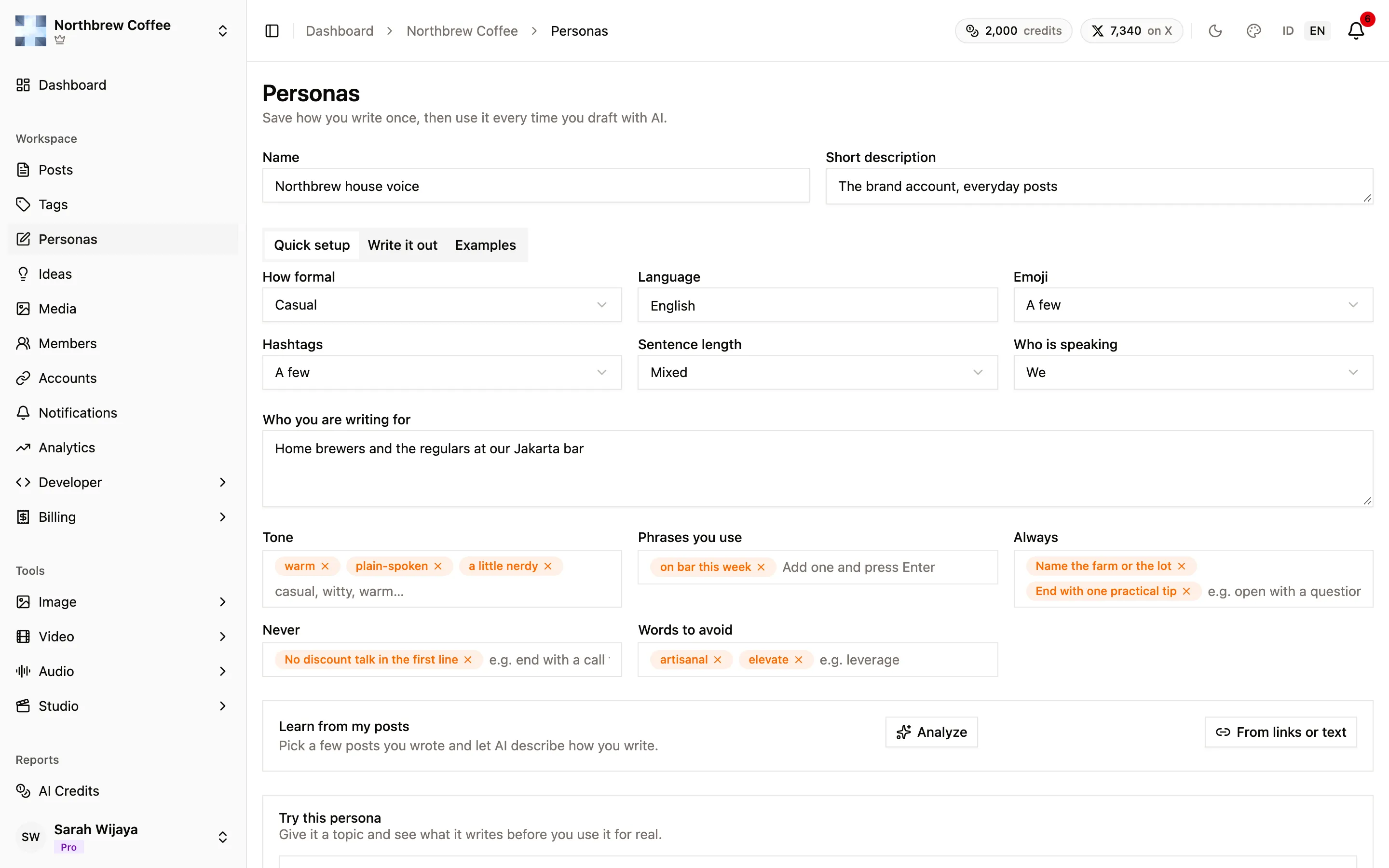
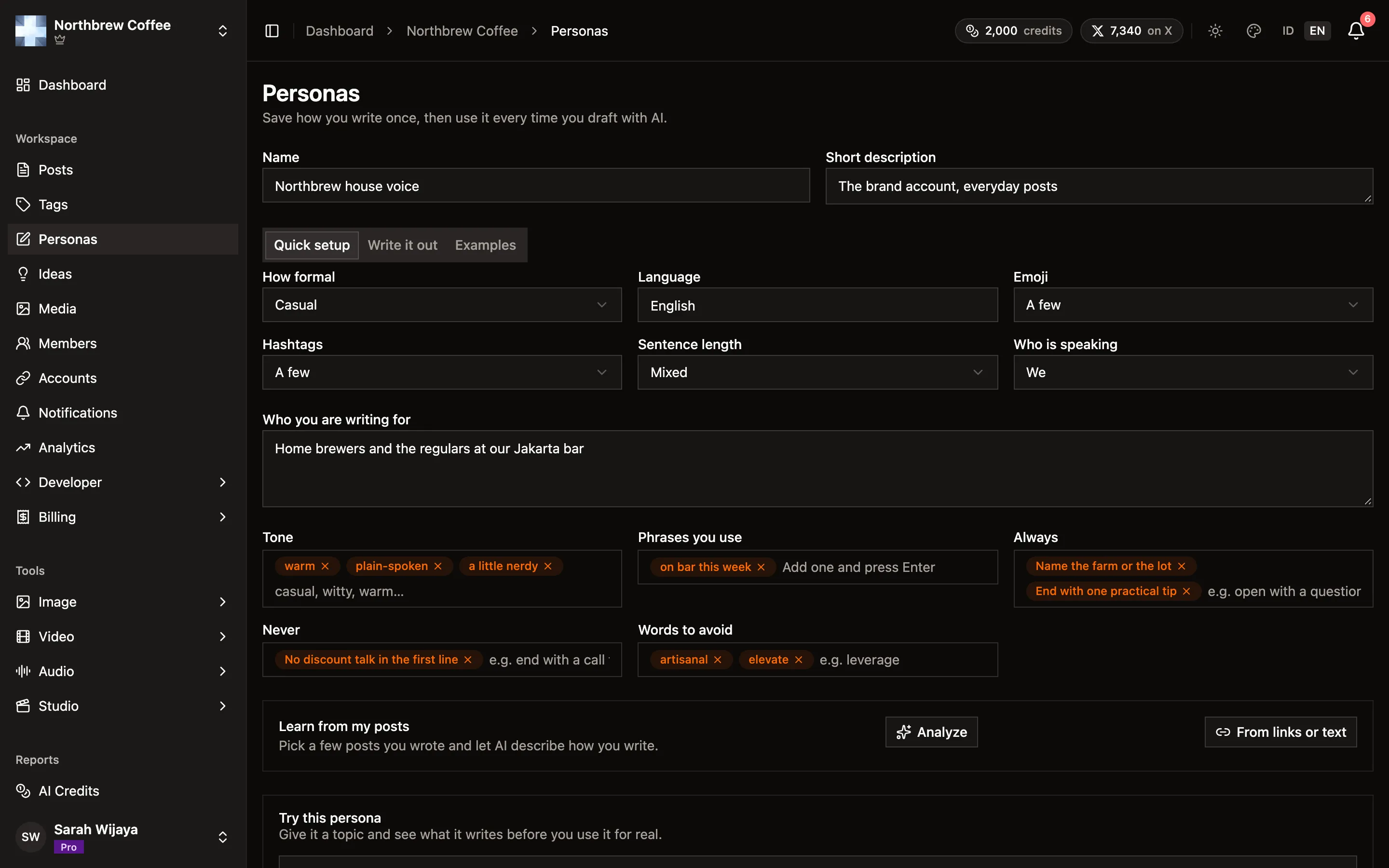
Section titled “Quick setup”The fast version. Pick from a few choices:
- How formal: Casual, Neutral or Formal.
- Emoji and Hashtags: Never, A few, or Plenty.
- Sentence length: Short, Mixed or Long.
- Who is speaking: I, We, or The brand.
- Language, in your own words. “A mix of English and Indonesian” works.
- Who you are writing for, like “developers building their first product”.
Then some lists, each up to 20 entries: Tone, Phrases you use, Always, Never and Words to avoid. Type one and press Enter.
Write it out
Section titled “Write it out”For anything the quick setup can’t express. It’s a normal text editor that takes Markdown, so you can write headings like “How I open posts” and “Things I never do”. The quick setup and this tab are used together, not one or the other.
Examples
Section titled “Examples”This is the tab that matters most. Three to ten real posts teach the model more than every setting above put together.
- Add an example and paste in something you wrote. Up to 10 examples, 2,000 characters each.
- Pick from my posts lists what you’ve already published through Publiz, newest first, with a search box and a channel filter. Tick the ones that sound most like you and press Attach.
Picked posts are copied in as they are. Editing or deleting the original later doesn’t change the example.
Press Save persona when you’re done. If someone else saved the same persona while you were editing, Publiz refuses your save rather than quietly overwriting theirs and tells you to reload.
Let AI fill it in for you
Section titled “Let AI fill it in for you”Not sure how to describe your own style? Learn from my posts reads a handful of your posts and suggests settings for you.
-
Save the persona first. Analyze stays off until it’s saved, since the suggestion needs somewhere to land.
-
Press Analyze and pick up to 10 published posts.
-
It reads them in the background, which takes a moment. When it’s done, a suggestion appears with what it noticed and what it would change.
-
Press Accept to use it, or Dismiss to throw it away.
From your writing elsewhere
Section titled “From your writing elsewhere”Haven’t posted much through Publiz yet? From links or text, next to Analyze, learns from things you wrote somewhere else, like blog posts or newsletters.
- Paste up to 10 links, one per line, and press Read links. You see what was read from each page before anything is analyzed, and you can edit it.
- Only public pages work. Posts on X, LinkedIn, Instagram, Facebook, Threads, TikTok, YouTube, Pinterest and Reddit can’t be read from a link, so copy the text and use Paste text instead. A link that can’t be read for any other reason turns into a paste box too.
- Each sample can be up to 6,000 characters, and you can mix links and pasted text, 10 samples in all.
Press Learn from N samples to start. The result arrives the same way as above.
Accepting only fills in what’s empty and adds to your lists. It never replaces something you set yourself. A brand new, completely empty persona is the exception, there the suggestion is applied as soon as it arrives, since there’s nothing to protect.
Try it before you use it
Section titled “Try it before you use it”Try this persona sits under the editor. Give it a topic, press Try it, and see what it writes. It uses whatever is on screen, saved or not, so you can tweak a setting and try again without saving in between. Each try costs about the same as one AI draft, and the button shows the number.
Write with a persona
Section titled “Write with a persona”The persona picker is labelled Write with, and it shows up in two places:
- The ✨ AI button in the composer, for both writing a new draft and enhancing what you have.
- Generate with AI on the content ideas page.
It starts on No persona, which is how AI behaved before personas existed. There’s no default to set: Publiz remembers the last one you picked in this workspace, on this browser, and picks it again next time.
Channel limits always win. A persona that loves long sentences still gets an X post that fits in 280 characters.
What it costs
Section titled “What it costs”Having personas and picking one costs nothing. A draft written with a persona costs a little more than one without, because your settings and examples go along with the request. Try it and Analyze are each charged like a normal AI call. See AI credits.
Editing, duplicating, deleting
Section titled “Editing, duplicating, deleting”Each row has Edit, Duplicate and Delete. Duplicate is the quick way to make a variant, like a more formal take on your usual voice.
Only the workspace owner can delete a persona. Posts you already wrote with it stay as they are.
A persona marked Shared comes from another workspace owned by the same person. You can write with it here, but it’s edited in the workspace it came from, and it doesn’t count toward this workspace’s limit.