
Reports
Analytics pulls together how your published posts did and how your follower counts moved. Open it from the sidebar of a workspace.
Filters and totals
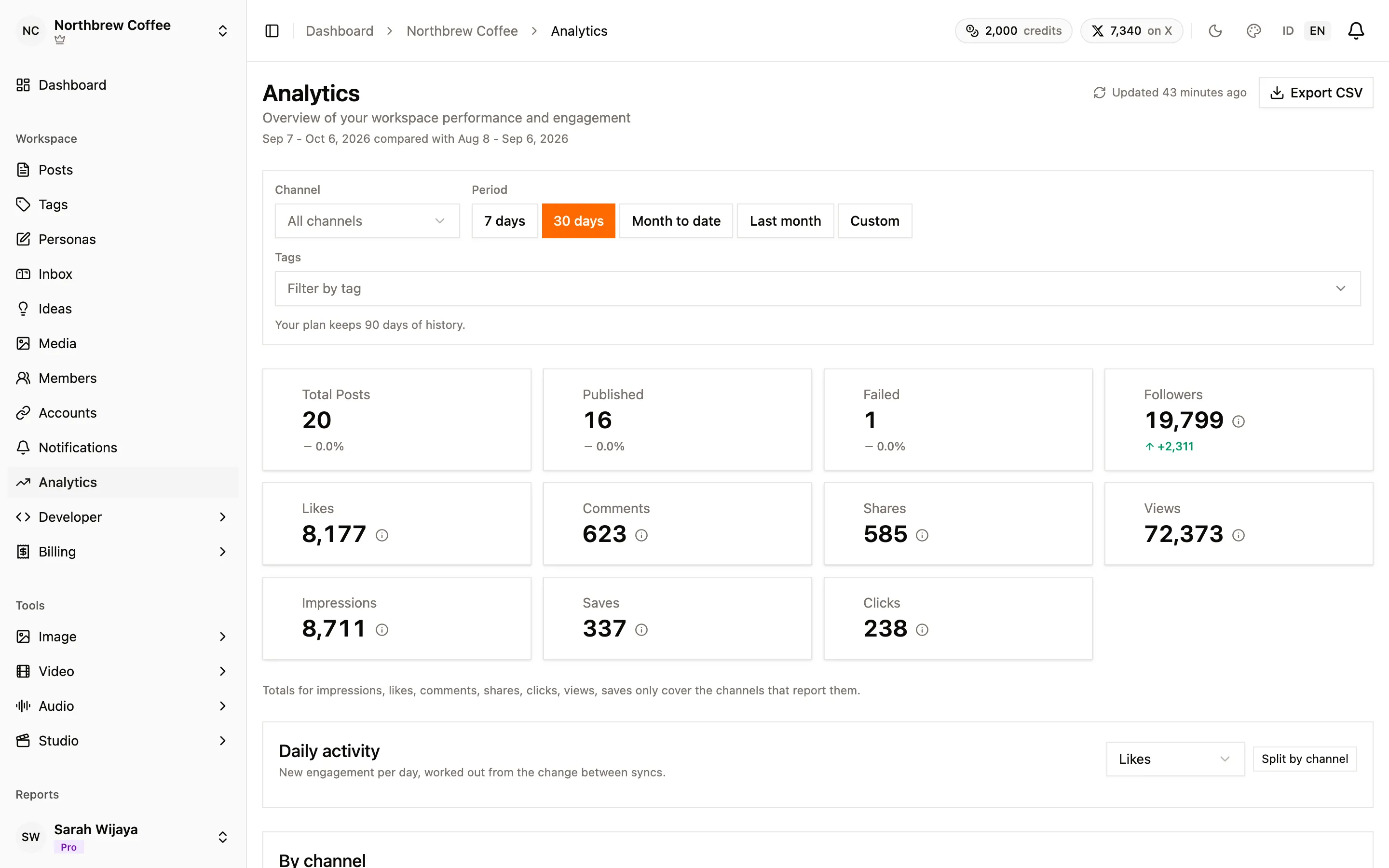
Section titled “Filters and totals”The filter bar narrows everything on the page at once:
- Channel: one connected account, or all of them.
- Period: 7 days, 30 days, month to date, last month, or a custom range. How far back you can go depends on your plan, and the line under the filters says how many days yours keeps. Periods past that are shown locked.
- Tags: pick Filter by tag to see only posts carrying any of the tags you choose. No tags is in the same list, for the posts you haven’t labelled.
Under the title, the page spells out the period and the one it’s being compared with, which is the same length right before it. Every total shows its change against that previous period.
The totals are Total Posts, Published, Failed and Followers, then the engagement numbers: Likes, Comments, Shares, Views, Impressions, Saves and Clicks. A dash means none of the channels in view report that number, which is different from a zero. The little info icon next to a total says which channels it covers.
Daily activity and channels
Section titled “Daily activity and channels”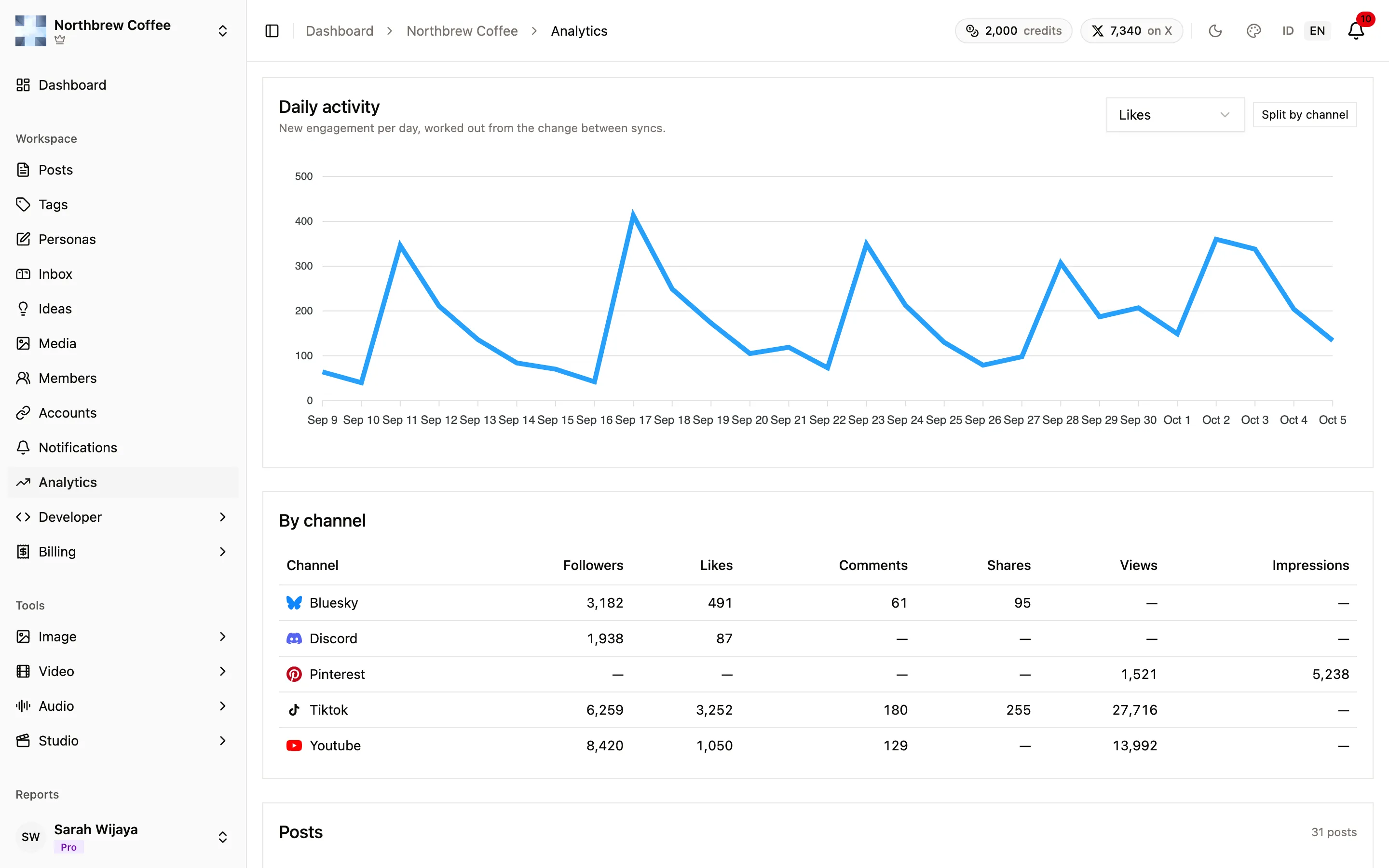
Daily activity charts new engagement per day. Pick the metric from the dropdown, and press Split by channel to get one line per channel instead of one total. Platforms report running totals, so the daily figure is worked out from the change between one day’s sync and the next. A post that was synced only once has no daily activity yet.
By channel puts each connected account side by side: its followers and the engagement its posts earned in the period.
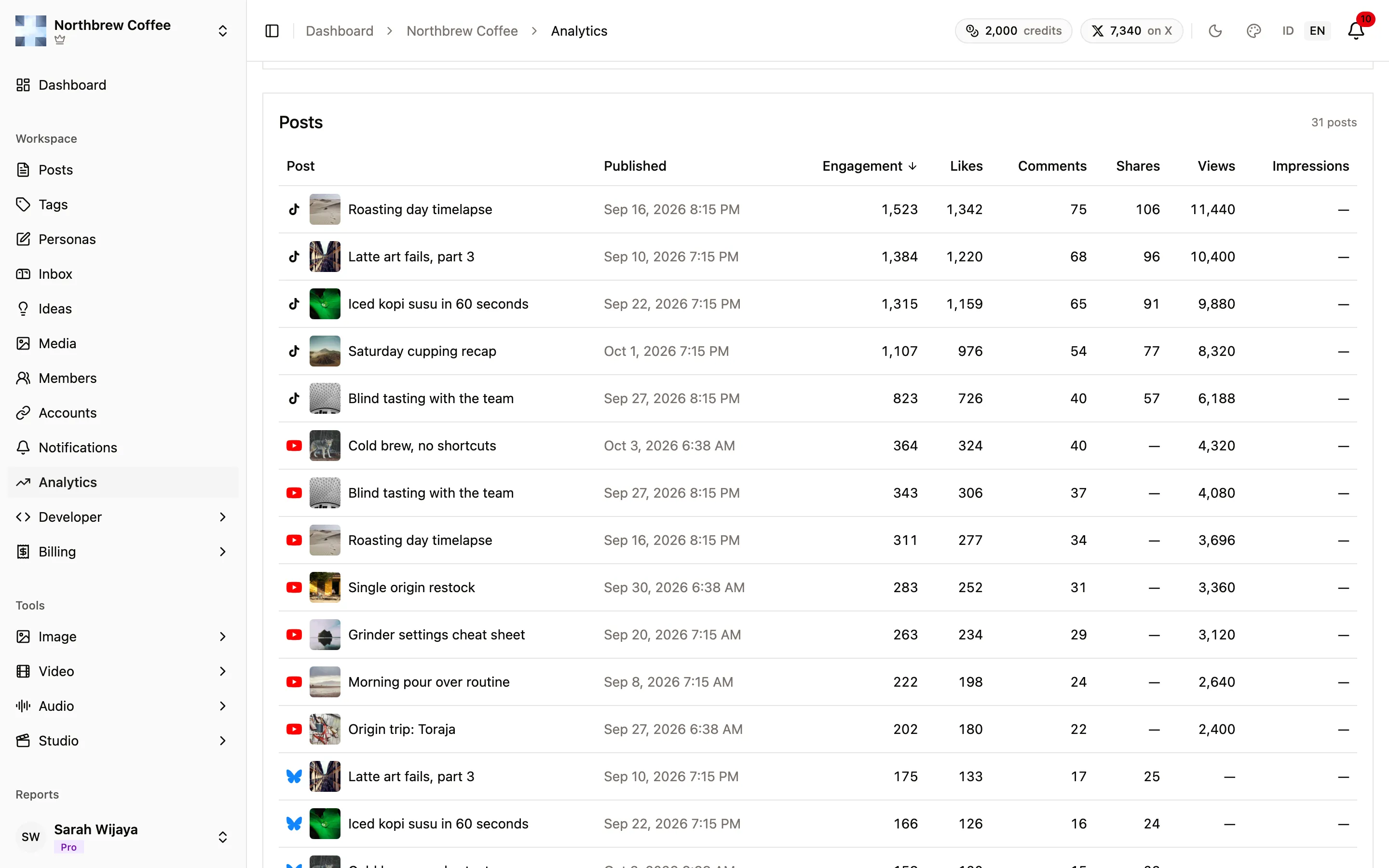
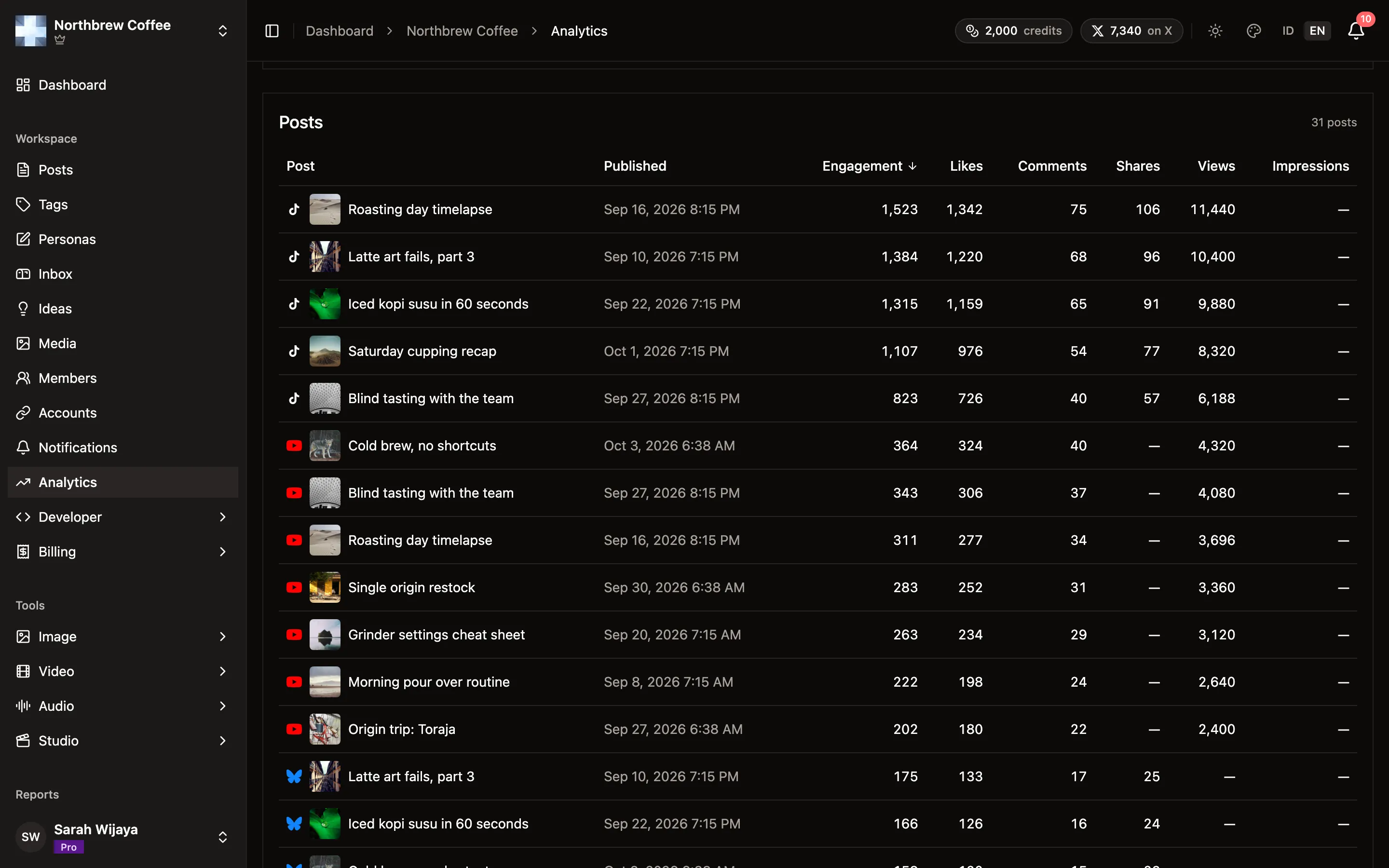
One row per post per channel, so a post sent to YouTube and TikTok shows twice, once for each. Click a column header to sort by it. Engagement adds up likes, comments and shares. Views and impressions are left out of it because they’re a different kind of number.
Export CSV at the top of the page downloads the period, the totals, and the post table as it’s shown, filters and all. An empty cell in the file means the channel doesn’t report that number. It never stands in for a zero.
When your posts do well
Section titled “When your posts do well”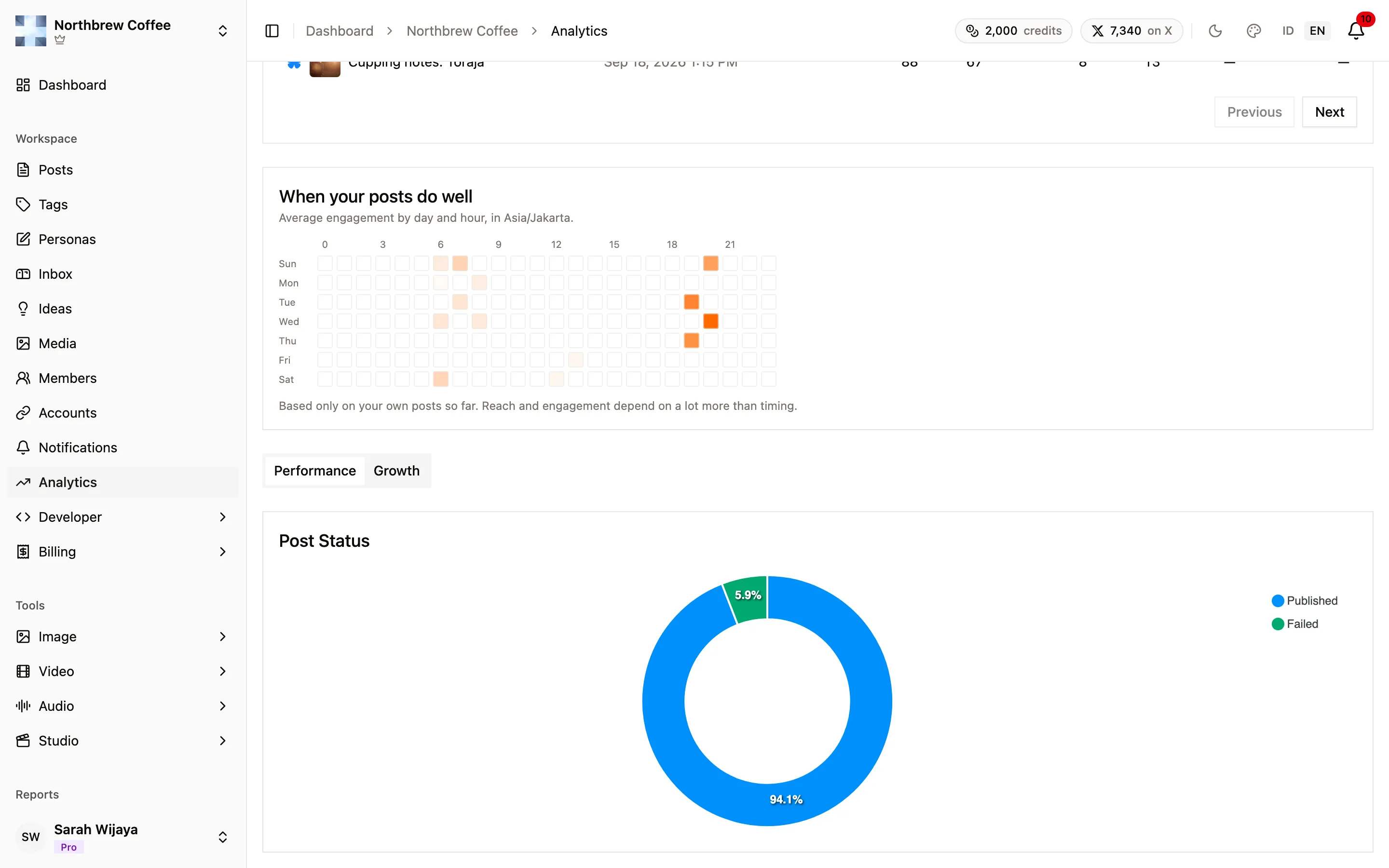
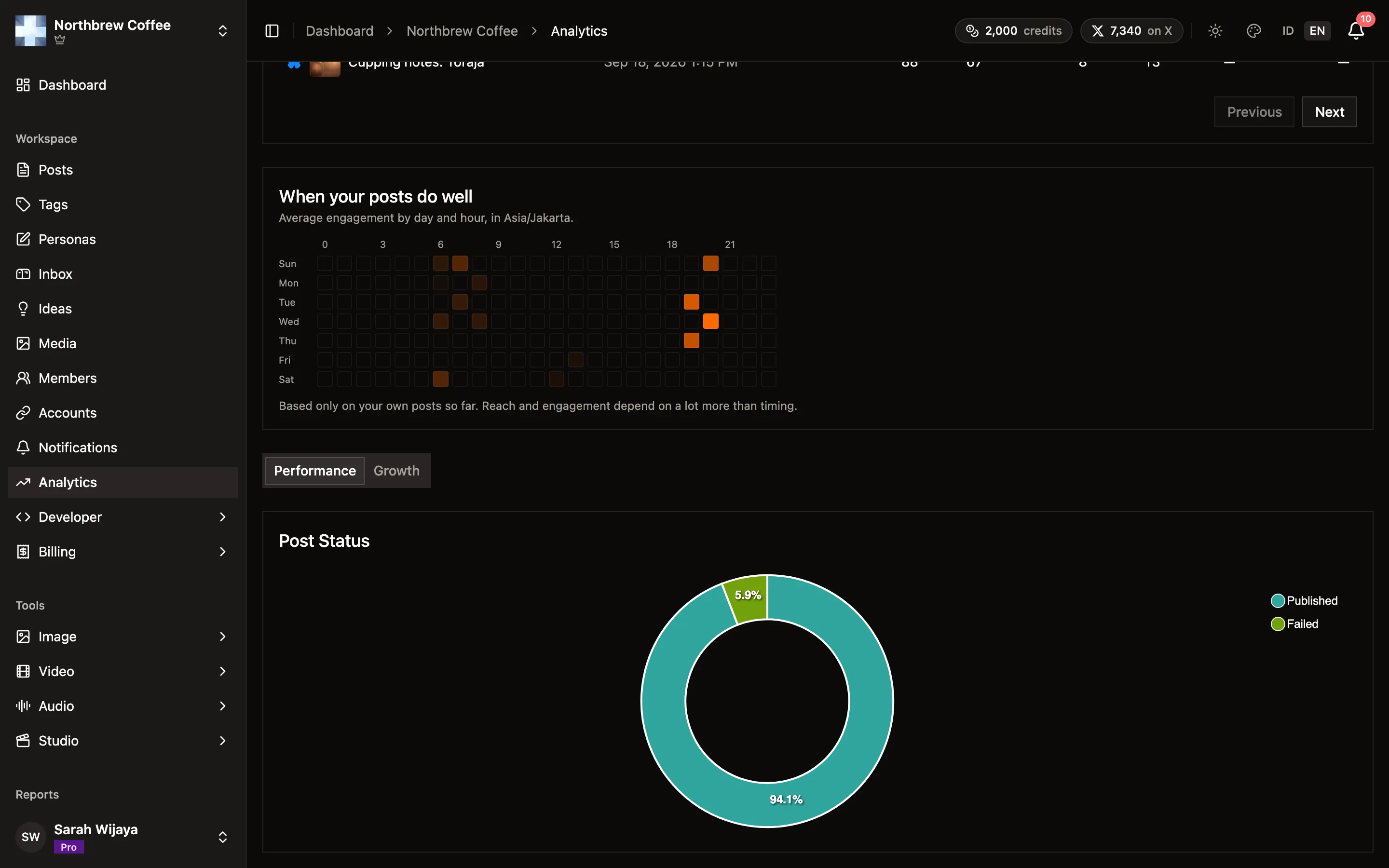
A grid of weekday by hour, in your own time zone. The brighter a square, the more engagement posts published in that hour got on average. A square with posts that report no engagement at all, like LinkedIn ones, stays empty rather than looking like a bad time.
It only knows your own posts, so give it a few weeks of posting at different times before you read much into it.
Follower growth
Section titled “Follower growth”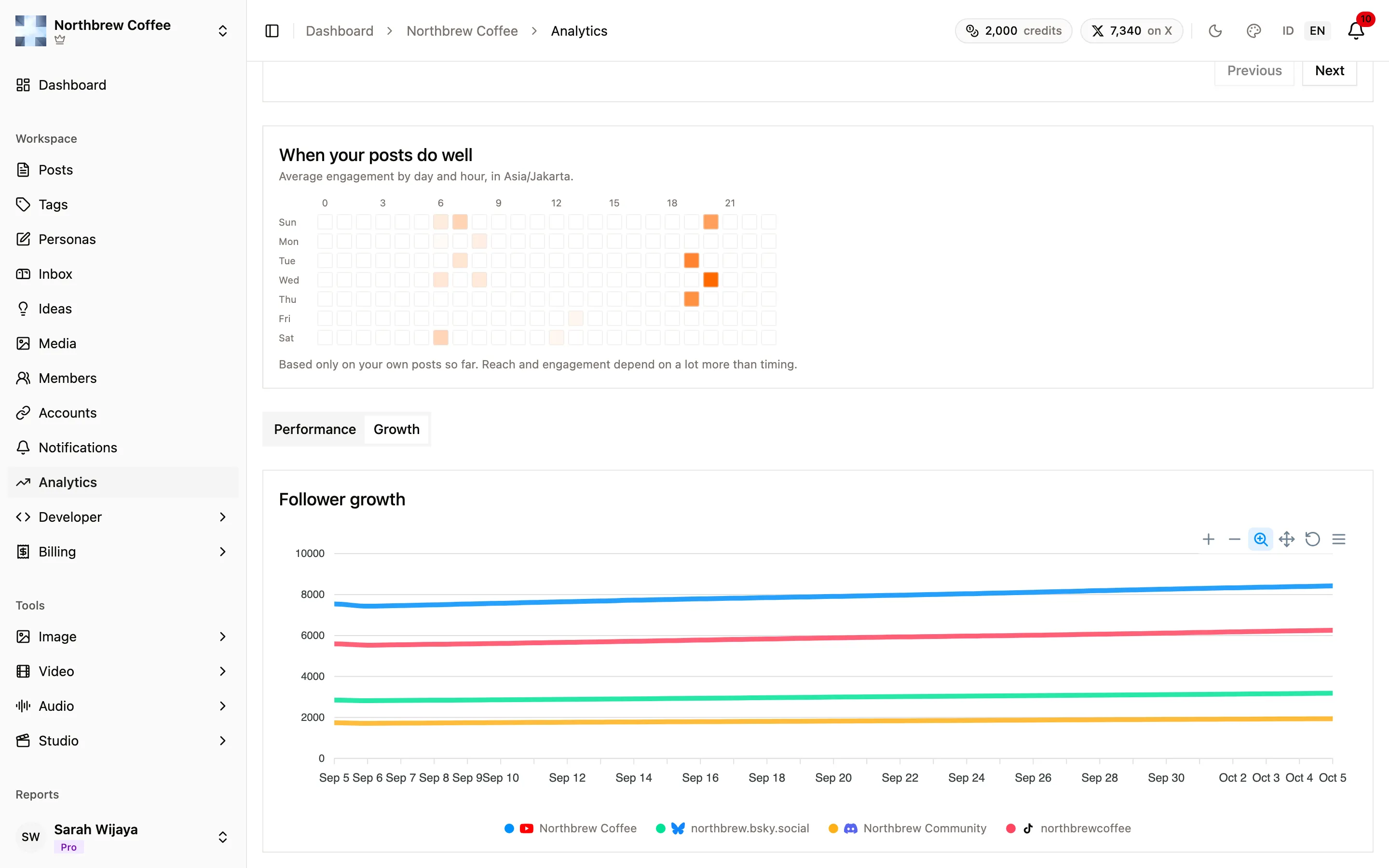
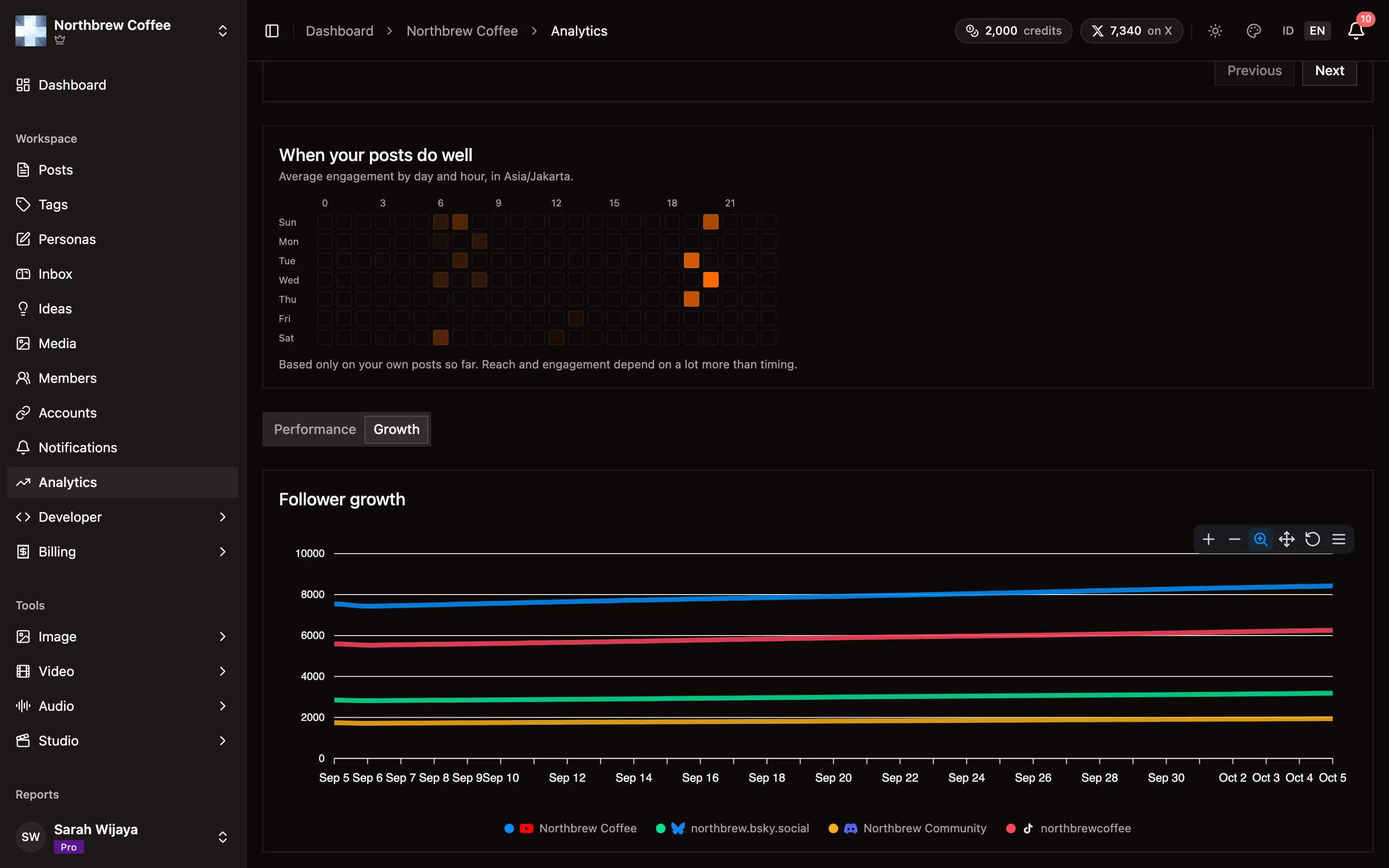
At the bottom, Growth draws one line per connected account, tracking followers over the last 30 days, whatever period the filters are set to. Performance, the other tab, shows how many of your posts published against how many failed.
What each channel reports
Section titled “What each channel reports”Read this before you go looking for a bug. Every platform hands back different numbers, and some hand back none at all.
| Channel | Post engagement | Follower growth |
|---|---|---|
| YouTube | likes, comments, views | subscribers |
| TikTok | likes, comments, shares, views | followers |
| Bluesky | likes, comments, shares | followers |
| Mastodon | likes, comments, shares | followers |
| X | likes, comments, shares, impressions | followers |
| impressions, views, clicks, saves | followers | |
| DEV | views, likes, comments | no |
| Discord | reactions, with the bot | members, with the bot |
| not yet | not yet | |
| WordPress | no | no |
So a workspace that’s all LinkedIn will see dashes in most totals. That’s this table, not a broken sync. Bluesky and Mastodon report no impressions because the protocols they run on don’t count them.
Discord only reports anything once the optional bot is in the server. See connect Discord.
X works differently. Reading X costs credits, so each post is read at most once a day, newer posts more often than older ones, and nothing is read past 30 days. If the balance drops below your plan’s reserve the reads pause altogether and the numbers hold their last values. See X.
How fresh the numbers are
Section titled “How fresh the numbers are”New posts are checked often and old ones less so, because engagement mostly happens early:
- every hour for a post’s first two days,
- every six hours until it’s two weeks old,
- once a day until 90 days,
- once a week after that.
The top of the page says when the numbers were last updated. Follower counts are checked every few hours and kept as one point per day, which is what the growth chart plots. You can force a check with the refresh button on an account row in Connected Accounts.
How far back you can look
Section titled “How far back you can look”| Plan | History |
|---|---|
| Free | 7 days |
| Starter | 30 days |
| Creator | 30 days |
| Pro | 90 days |
| Agency | 365 days |
On Free the page shows your real numbers for the last week. The longer periods are there but locked, and Export CSV comes with the paid plans.