
Compose a post
One composer covers every channel. You write once, adjust per channel where it matters, and see what each one will look like before it goes out.
Open it from Posts with Create Post. Clicking a day in the calendar opens it too, with that day already filled in for when you switch to Scheduled. Editing a post opens the same page.
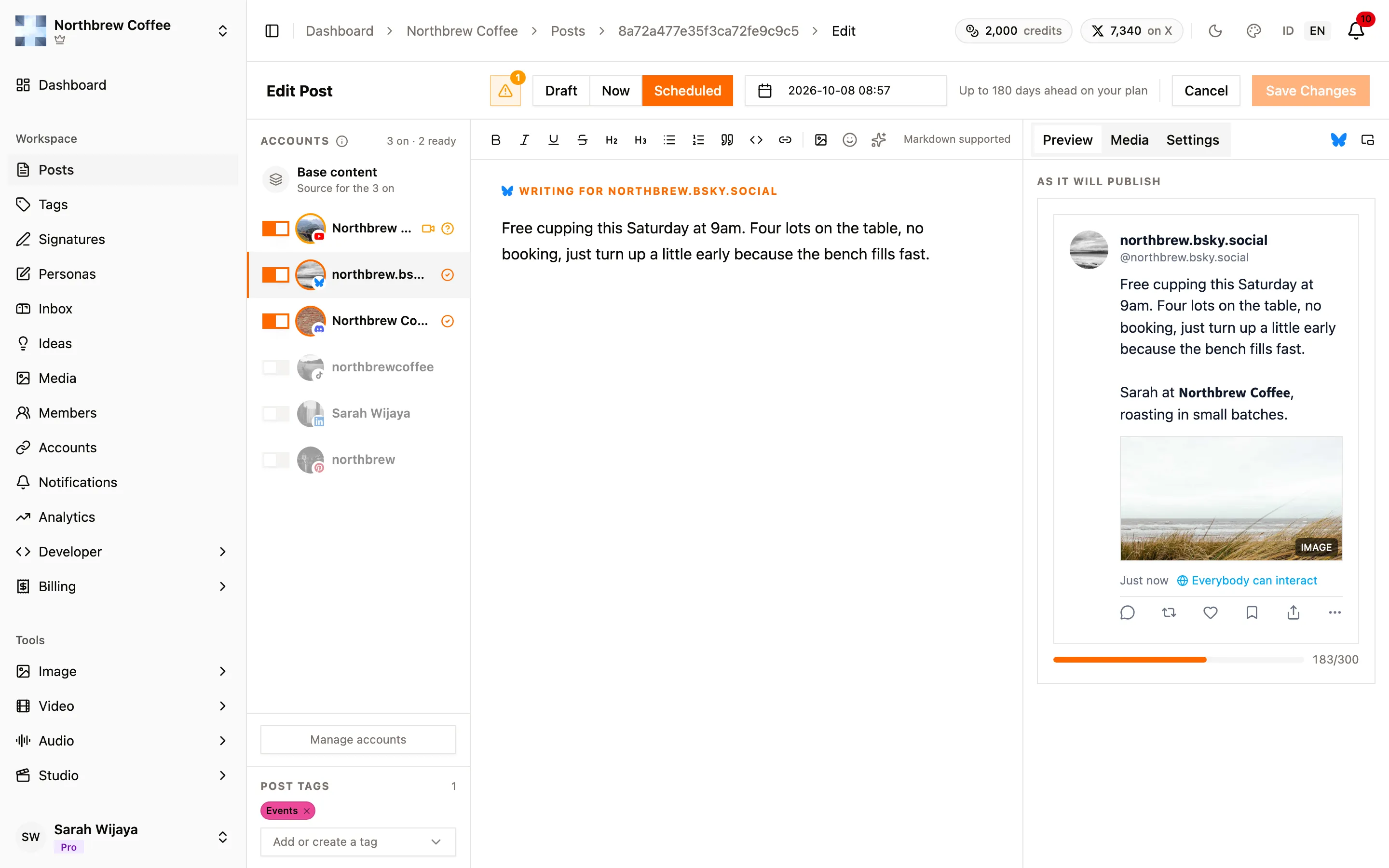
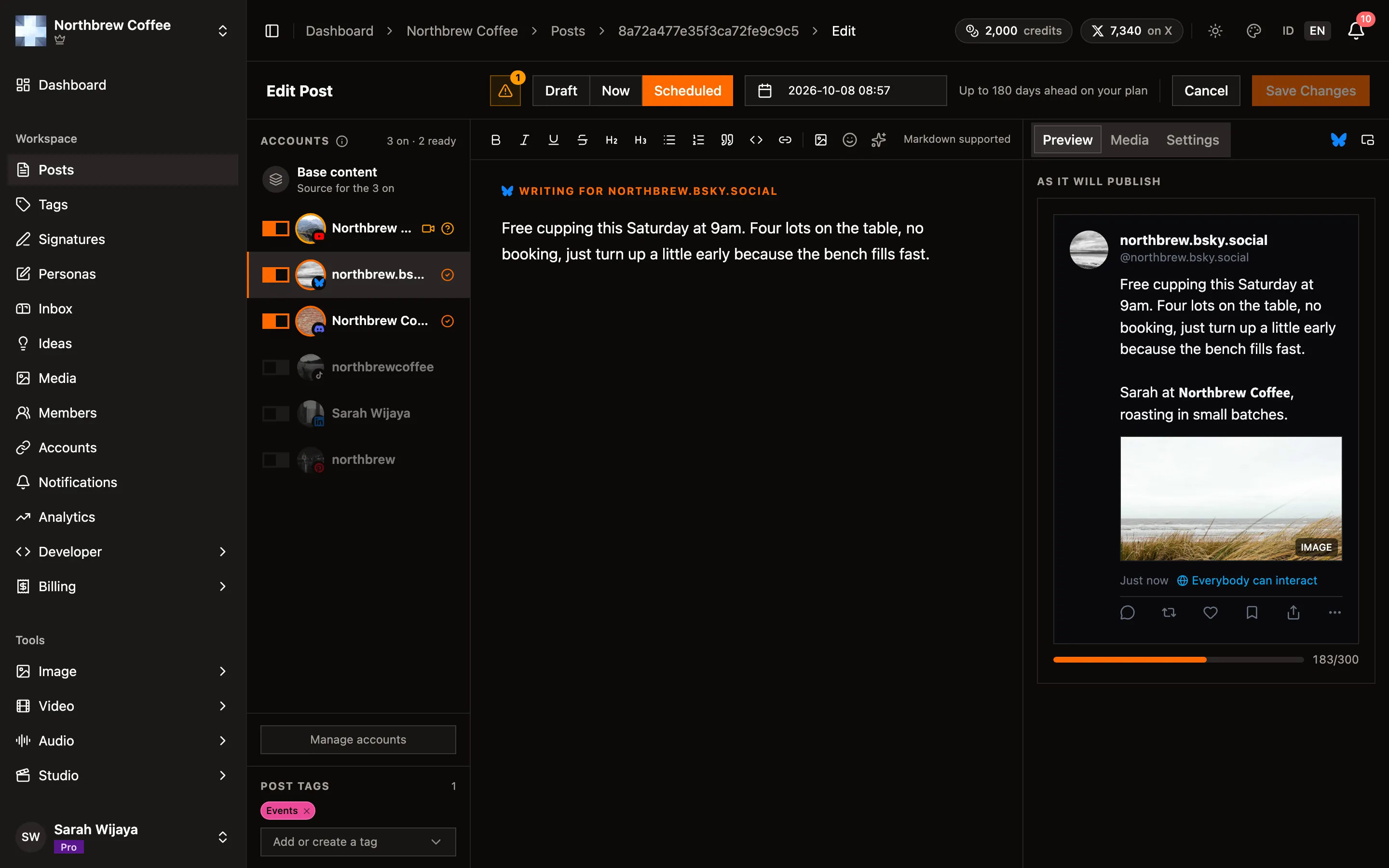
The page has three parts. Accounts on the left, the text in the middle, and on the right a pane with Preview, Media and Settings tabs. The publish controls sit in the header.
Pick your accounts
Section titled “Pick your accounts”The left column lists every connected account. Flip the switch on the ones this post should go to. The header of the list keeps count, like “3 on · 2 ready”.
Each account shows small icons for anything it still needs, and a colored ring:
- Amber means something’s missing, like a video for YouTube, a title, or a required option.
- Red means something is blocking it, like text over the character limit.
You can always save a draft. Publishing and scheduling stay off until every account that’s switched on is ready. The readiness button in the header lists what’s left, one line per problem.
Need another account? Manage accounts at the bottom of the list takes you to Connected Accounts.
Write once, adjust per channel
Section titled “Write once, adjust per channel”Base content sits at the top of the list. It’s the text every account uses unless you tell it otherwise, and it shows how many accounts follow it.
Click an account to write just for that channel. The editor says “Writing for” and the account name. The moment you change something, it’s marked Overriding base, and from then on that account keeps its own version while the others carry on following the base. Reset throws the channel’s version away and puts it back on the base.
The title and hashtags work the same way, each with its own Reset.
Character limits
Section titled “Character limits”On most channels, text over the limit blocks publishing for that account until you trim it or switch the account off. The count includes everything that goes out with the post: hashtags, the signature, and stock photo credits.
| Channel | Limit |
|---|---|
| X | 280 |
| Bluesky | 300 |
| Mastodon | set by your server, often 500 |
| 500 | |
| Discord | 2,000 |
| TikTok | 2,200 |
| 3,000 | |
| YouTube | 5,000 |
| DEV, WordPress | no limit |
X, Bluesky and Mastodon don’t block. Text that’s too long for one post turns into a thread instead.
Threads
Section titled “Threads”On X, Bluesky and Mastodon, text that doesn’t fit in one post goes out as a thread: a chain of posts, each a reply to the one before, numbered (1/3), (2/3) and so on.
You don’t have to set it up. Write past the limit, on base or in the channel’s own version, and the editor for that channel turns into one card per post.
- Each post has its own box. If one runs over, the extra moves into the next post once you stop typing.
- Add to thread adds an empty post at the end, and the × on a post removes it. Remove all but one and you’re back to a single post.
- Hashtags and your signature go on the last post. Each post’s counter already includes them and the post’s number, so the count is what goes out.
- Media goes on the first post.
- The preview shows the whole thread, and so does the post’s detail view later.
A draft can hold an empty post while you’re still writing. Publishing and scheduling wait until every post has something in it.
On X, every post in the thread is a post of its own, so each one is charged in X credits. Mastodon threads split at 500 characters per post, even on a server that allows more.
Formatting
Section titled “Formatting”The toolbar has the usual: bold, italic, underline, strikethrough, headings, lists, quotes, code
blocks, links, images and emoji. Select some text and a small menu pops up with the same options.
Type / on an empty line for blocks like a divider or a code block. Markdown works too, so typing
**bold** does what you’d expect.
Not every channel can show formatting, so Publiz converts it for each one when the post goes out:
| Channel | What happens |
|---|---|
| LinkedIn, X, TikTok, Pinterest, Bluesky, Mastodon | Bold, italic, underline and strikethrough become look-alike Unicode characters, so they still show. Everything else turns into plain text. |
| DEV, WordPress, Discord | Formatting is kept as Markdown, which these channels render properly. |
| YouTube | Plain text. |
Turning into plain text keeps things readable: headings lose their #, list items become •
bullets, and a link becomes the text followed by the URL in brackets.
Images you put in the text only show inline on DEV and WordPress. Each one has a size (Small to Full width) and a Describe this image field. Channels that can’t show the image get that description instead, so fill it in.
The preview always shows the converted version, so what you see there is what goes out.
AI assist
Section titled “AI assist”The ✨ button in the toolbar writes and rewrites for you. It works on whatever you have open: on base content it rewrites the shared text (and every account following it), on a channel it rewrites just that channel’s version and keeps it within that channel’s limit.
- Empty editor: tell it what the post is about and it writes a draft.
- Text already there: pick an action like Improve, Shorten, Expand, Fix grammar, Make casual or Make professional. Custom prompt lets you say what you want in your own words, and Write something new starts over from a topic.
Pick a persona under Write with and the result follows your writing style instead of the generic one.
The cost in AI credits shows before you run it. The result opens in a preview where you Apply it or Discard it, nothing touches your text until you apply. Undo, redo and the history list sit next to the button, so an apply you regret is one click away.
Preview
Section titled “Preview”The Preview tab shows the selected account’s post as it will publish, with its character count. Pick an account on the left to see it, base content has no preview of its own. Pop out preview turns it into a floating card you can keep beside the editor while you work on other tabs. If that account has a problem, the first one shows at the bottom of the pane.
The Media tab is where attachments go.
- Upload from your computer, paste a URL, pull from your media library (paid plans), or search Unsplash and Pexels without leaving the composer. Stock photo credits are kept and added automatically.
- Drag the thumbnails to reorder them. On a carousel post the order is the order people see. Click one to see it full size.
- Media is shared by every account on the post.
Every channel has its own media rules, and they’re stricter than people expect. Images are taken care of: if a channel can’t take an image’s format, or the file is bigger than it allows, that channel gets a converted copy (a JPEG, shrunk to fit) when the post goes out. Your original stays as it is, and every other channel gets it untouched.
Videos and GIFs can’t be converted, so one in a format a channel doesn’t take, or a video over its size limit, is refused when you save. The channel pages list the limits.
Below the media, Add to your post offers a Poll or a Link, but only when one of the accounts you’ve switched on supports it.
Settings
Section titled “Settings”The Settings tab holds everything that isn’t the text or the media, in sections you can open and close.
Title. The section is called Article, Video or Post options depending on the channel. YouTube requires a title and caps it at 100 characters. Pinterest falls back to the first line of your text if you leave it empty.
Channel options. With an account selected, its own settings appear here: the made-for-kids answer and privacy on YouTube, privacy on TikTok, the board on Pinterest, who can reply on Bluesky, and so on. A channel with nothing extra says so.
First comment
Section titled “First comment”On LinkedIn, X, Bluesky, Mastodon and YouTube there’s a First comment box under the channel’s options. Whatever you write there is posted from the same account as a comment on your post, right after it goes live. Write whatever fits: extra context, a question to get people talking, credits, or a link. Some people move links here because a few networks seem to show posts with a link in the body to fewer people. On a thread, the comment goes under the last post.
If the comment doesn’t go through, Publiz tries again a few times. Your post stays published either way. If it still fails, open the post from your posts list and you’ll see a warning with a Retry button.
Publiz stops you before publishing when the comment can’t work: when it’s over the channel’s limit, or when the post has comments switched off (No one on LinkedIn, or a YouTube video made for kids).
On X the comment is a reply, so it costs X credits like any post, and more when it has a link. The price shows under the box. If your balance can’t cover the post and its comment, you can’t schedule or publish until you remove the link, clear the comment, or top up.
The ✨ next to First comment writes the comment for you. Pick a persona if you want it in one of your voices, say what the comment should do if you like (“ask a question”, “add the signup link”), and press Write. If the box already has text, the button says Rewrite and works from what you wrote. You see the result first and choose Use this or Discard. It spends AI credits, and the price shows before you press the button. When your balance is too low, you get a top-up link instead. A workspace on its own AI key doesn’t spend credits for it.
Hashtags and signature
Section titled “Hashtags and signature”Hashtags are added per channel, and only where Append hashtags to this channel is switched on. It starts off for every channel. On YouTube they become video tags.
The Signature is a sign-off added to the bottom of the post. Each account can have one of the workspace’s signatures attached, and it’s used by default. Under the hashtags you can untick Signature to post without one on this channel, or pick a different signature just for this post. It counts toward each channel’s character limit, so a long one leaves less room to write.
Use an idea pulls in something you saved in content ideas. The idea’s title, text and tags fill in the post’s title, base content and hashtags, and if the idea has a version written for a particular channel, that account gets it as its own text. It’s only on base content.
The Post tags box at the bottom of the accounts list puts private labels on the post. They’re never published. See post tags.
Publish, schedule, or save
Section titled “Publish, schedule, or save”The header has three choices:
- Draft saves without sending. Drafts count against a per-plan limit.
- Now publishes immediately.
- Scheduled shows a date and time picker. See scheduling.
Then press the button next to them. Nothing is saved until you do, the composer doesn’t autosave, so don’t close the tab on a long draft.
If X is one of the accounts, a badge next to the buttons shows what the post will cost in X credits, and it updates as you type.
If publishing is refused, the readiness list says which account and why. The usual ones:
- Made for kids? Unanswered. YouTube’s COPPA declaration, and it has no default on purpose.
- No board picked yet. Pinterest needs a board.
- No privacy setting picked yet. TikTok needs a privacy level.
- Needs a video or Needs a photo or video, on channels that can’t post text alone.
- Text over the character limit.