
Signatures
A signature is a short sign-off added to the bottom of a post, like “Sarah at Northbrew Coffee, roasting in small batches.” You write it once on the Signatures page, then attach it to as many accounts as you like. Signatures are on every plan, Free included.
They belong to the workspace, not to an account. Remove an account and its signature stays put, ready for the next one you connect.
Write one
Section titled “Write one”Open Signatures in the workspace sidebar, under Tags. Members need the Signatures permission to use it.
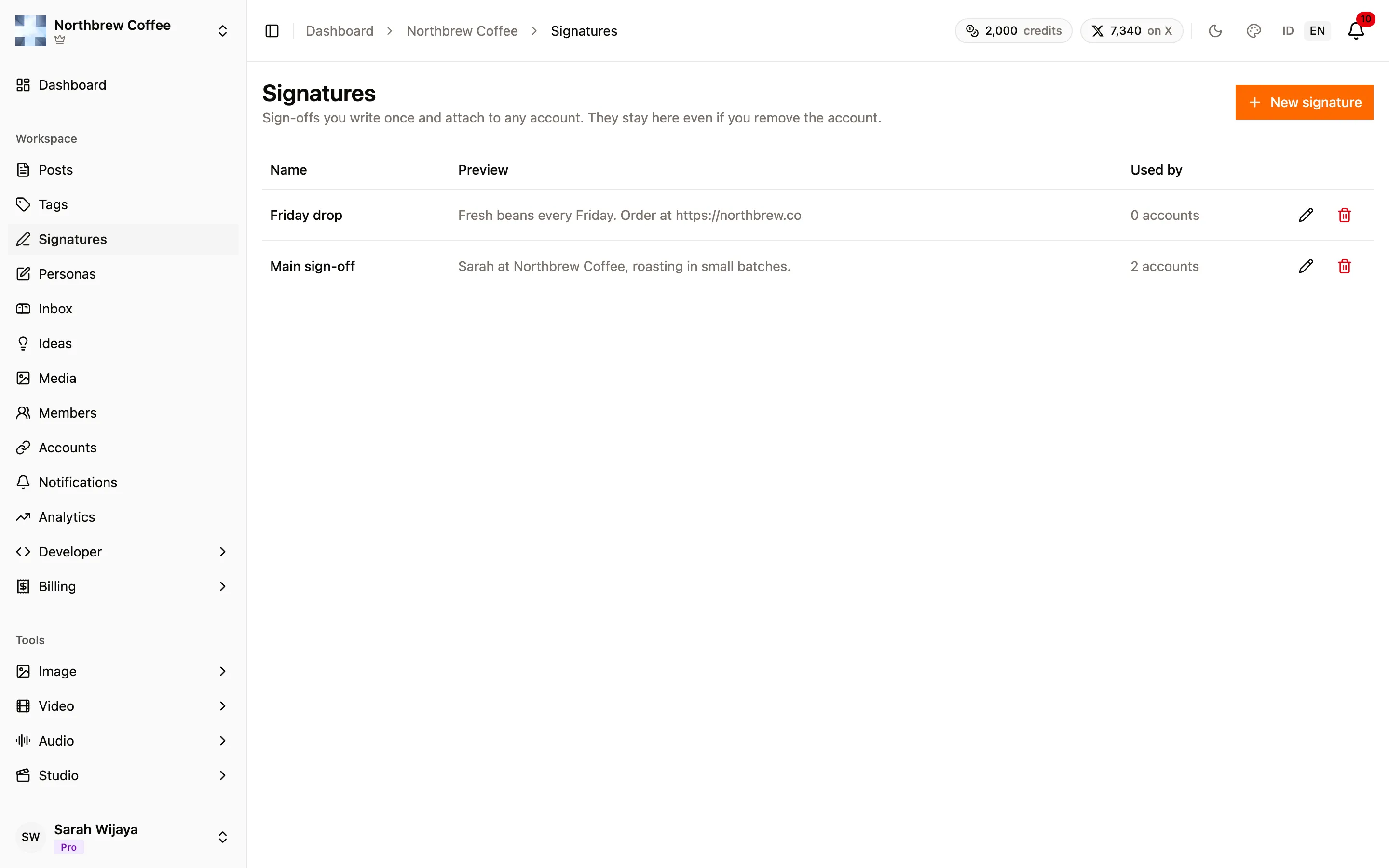
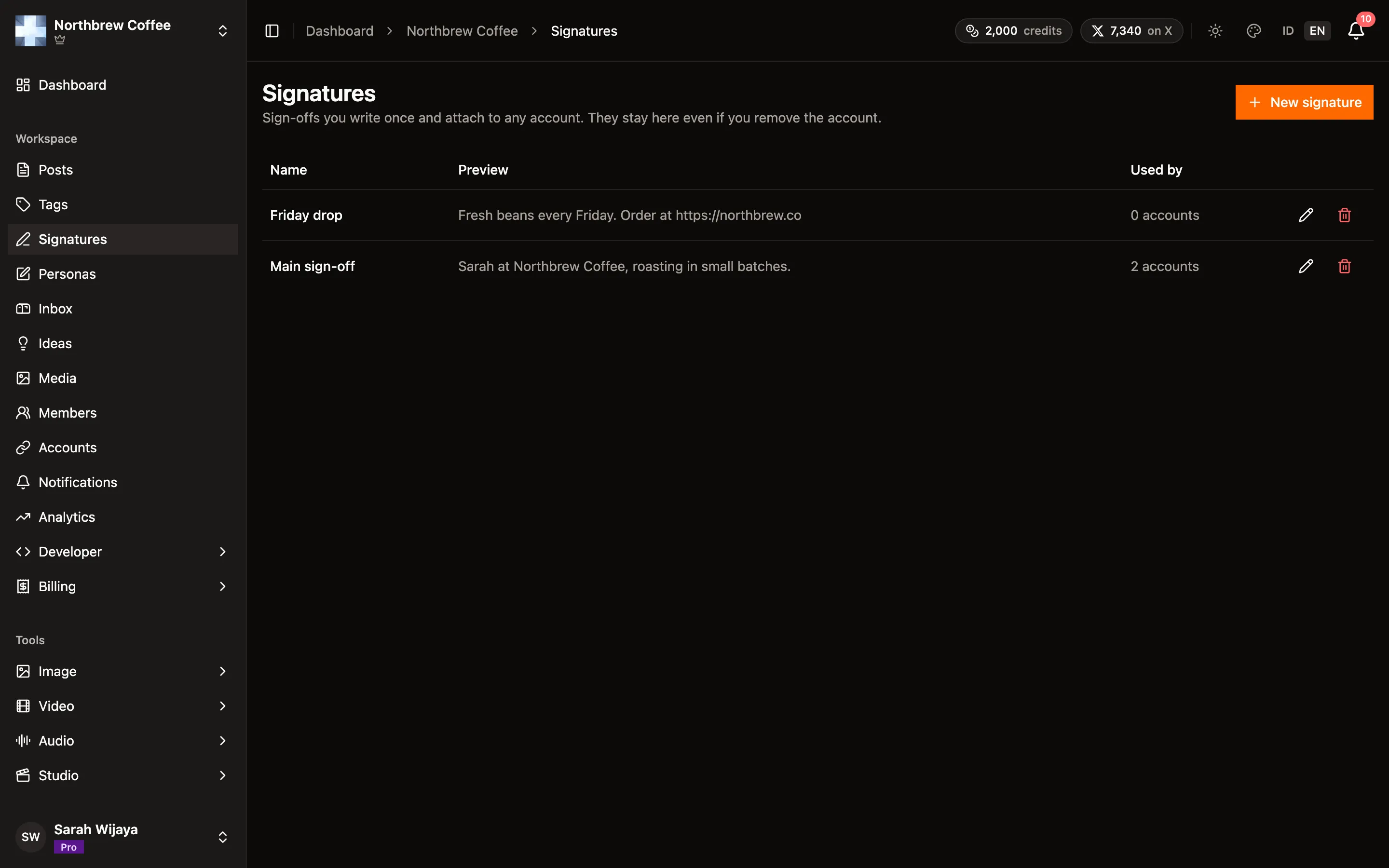
Press New signature, give it a name and write it. The toolbar has bold, italic, underline, strikethrough and a link button.
- Names are up to 80 characters and unique in the workspace. “Main” and “main” count as the same name.
- The text can be up to 280 characters, counted without the formatting. A link counts as its words plus the address, because that’s what most channels end up showing.
- The Used by column shows how many accounts have it attached.
Editing a signature changes it everywhere at once, including posts already waiting in the queue. The signature is added when a post goes out, not when you save it.
How it looks on each channel
Section titled “How it looks on each channel”Channels handle formatting differently, so each one gets the version it can show:
| Channel | Bold, italic, strikethrough | Links |
|---|---|---|
| X, LinkedIn, Bluesky, Mastodon, TikTok, Pinterest | Styled lookalike letters | Shown as “words (https://…)” |
| Discord, DEV, WordPress | Real formatting | The words are the link |
| YouTube | Plain text | Shown as “words (https://…)” |
Underline shows up as underlined letters on the first group and is left out on the others.
Links. A full link starting with https:// is clickable on most channels. A bare domain like
publiz.app works too on LinkedIn, X and Bluesky, but Mastodon only links addresses that start with
https://, and TikTok never makes links in a caption clickable. Leave a link’s own text unstyled:
styled letters are different characters, so no channel turns them into a link.
Attach it to an account
Section titled “Attach it to an account”On the Accounts page, press the signature button on an account’s row. Pick a signature from the list, or search it by name. The preview shows it the way that account’s channel will publish it.
You also choose where it goes:
- After the hashtags, the usual order. The post ends on the signature.
- Before the hashtags, so the post ends on the hashtags instead.
Pick No signature to take it off the account. Write or edit signatures jumps to the Signatures page.
Change it for one post
Section titled “Change it for one post”In the composer, select an account and look under the hashtags. Untick Signature to post without one, or pick a different signature for this post only. The preview updates as you switch.
Deleting a signature
Section titled “Deleting a signature”Deleting asks first and tells you how many accounts use it. Those accounts go back to no signature, and so does any queued post that picked it. There’s no undo.
From the API
Section titled “From the API”With the Signatures scope, a key can list, write, edit and delete signatures at /signatures,
on every plan. Send the text as Markdown and Publiz renders it for each channel, the same way the
editor does. Use a signature’s id as the channel’s signature in PATCH /channels/{id}/settings
(Channels scope), or as signatureId in a post’s per-channel settings. The
MCP connector has the same tools. See API keys.