
Post tags
Tags are labels you put on your own posts so you can find and compare them later: “Product launch”, “Weekly tips”, “Client: Northbrew”. They’re private. Nothing about a tag is ever published, so your audience never sees them.
Make and manage them
Section titled “Make and manage them”Open Tags in the workspace sidebar, right under Posts. Members need the Tags permission to use it.
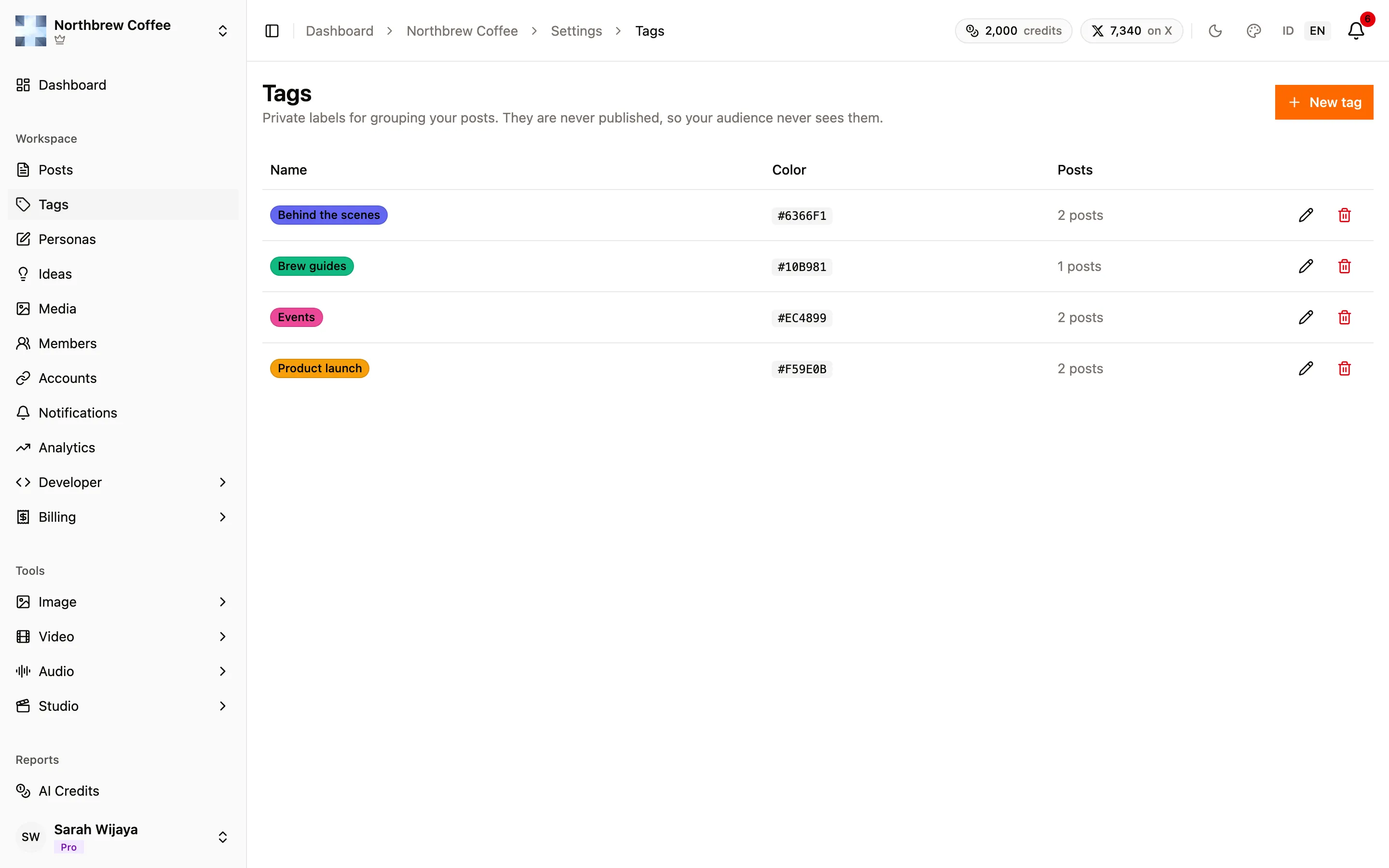
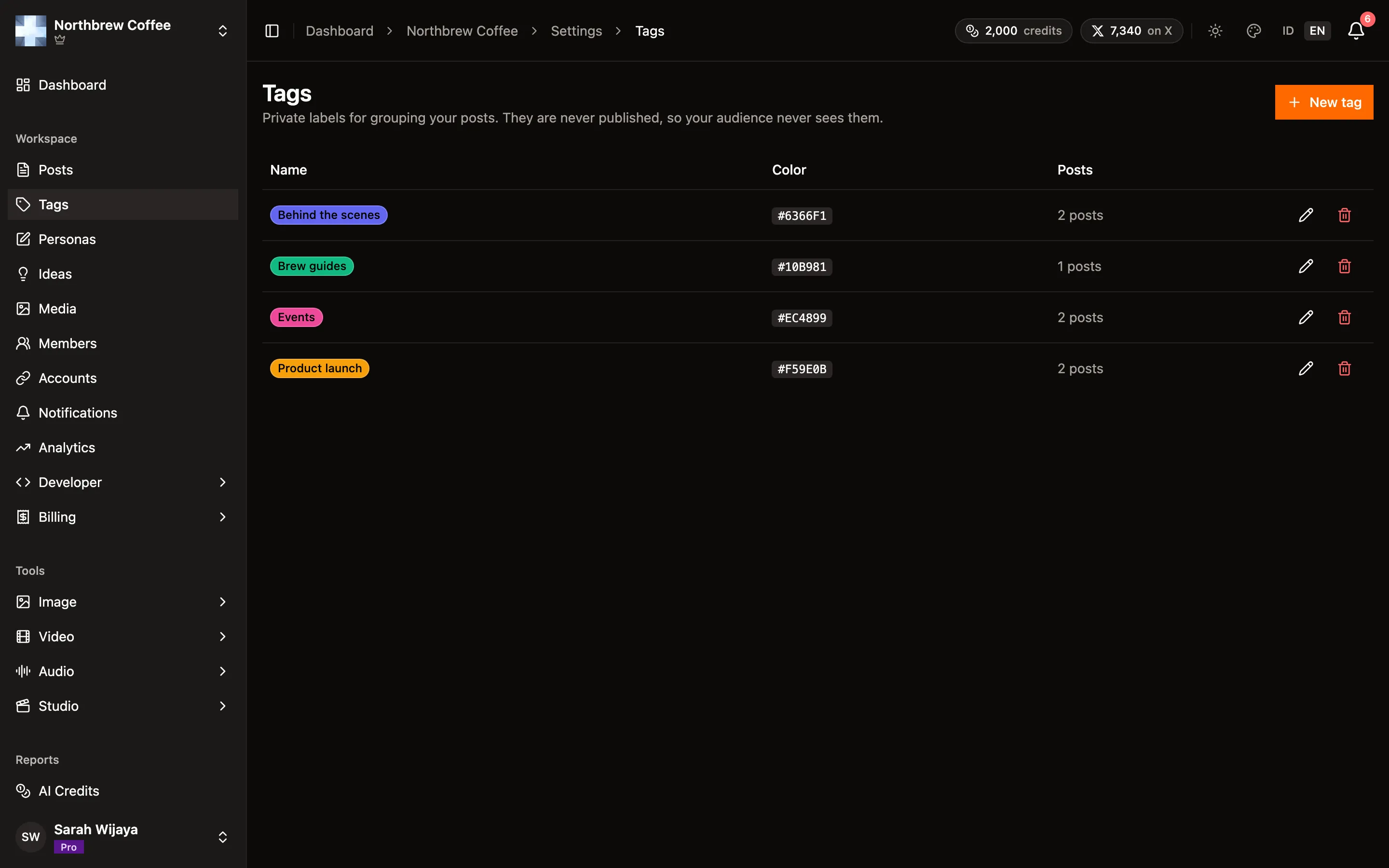
Press New tag, give it a name and pick a color. The preview chip shows what it will look like before you save.
- Names are up to 40 characters and unique in the workspace. “Launch” and “launch” count as the same name.
- The Posts column counts how many posts carry each tag right now.
- There’s no limit on how many tags you make, or how many go on one post.
Renaming or recoloring a tag changes it everywhere at once. Deleting one removes it from every post that has it, and there’s no undo.
Tag a post
Section titled “Tag a post”In the composer, the Post tags box sits at the bottom of the accounts list on the left. Start typing to search your tags, or pick Create “…” to make a new one on the spot. A tag made this way gets the next color in the palette. You can change it later on the Tags page.
Tags belong to the post as a whole, not to one channel.
Where they show up
Section titled “Where they show up”- A Tags column in the posts list.
- Colored dots on calendar entries, up to three per post.
- The post’s detail view.
Filtering by tag
Section titled “Filtering by tag”Analytics has a proper tag filter. Pick Filter by tag, choose one or more tags, and the numbers narrow to posts carrying any of them. There’s also a No tags option, which is handy for spotting what you forgot to label. See reports.
On the posts list there’s no separate tag filter, but the search box matches tag names, so typing a tag’s name finds its posts.