
Media library
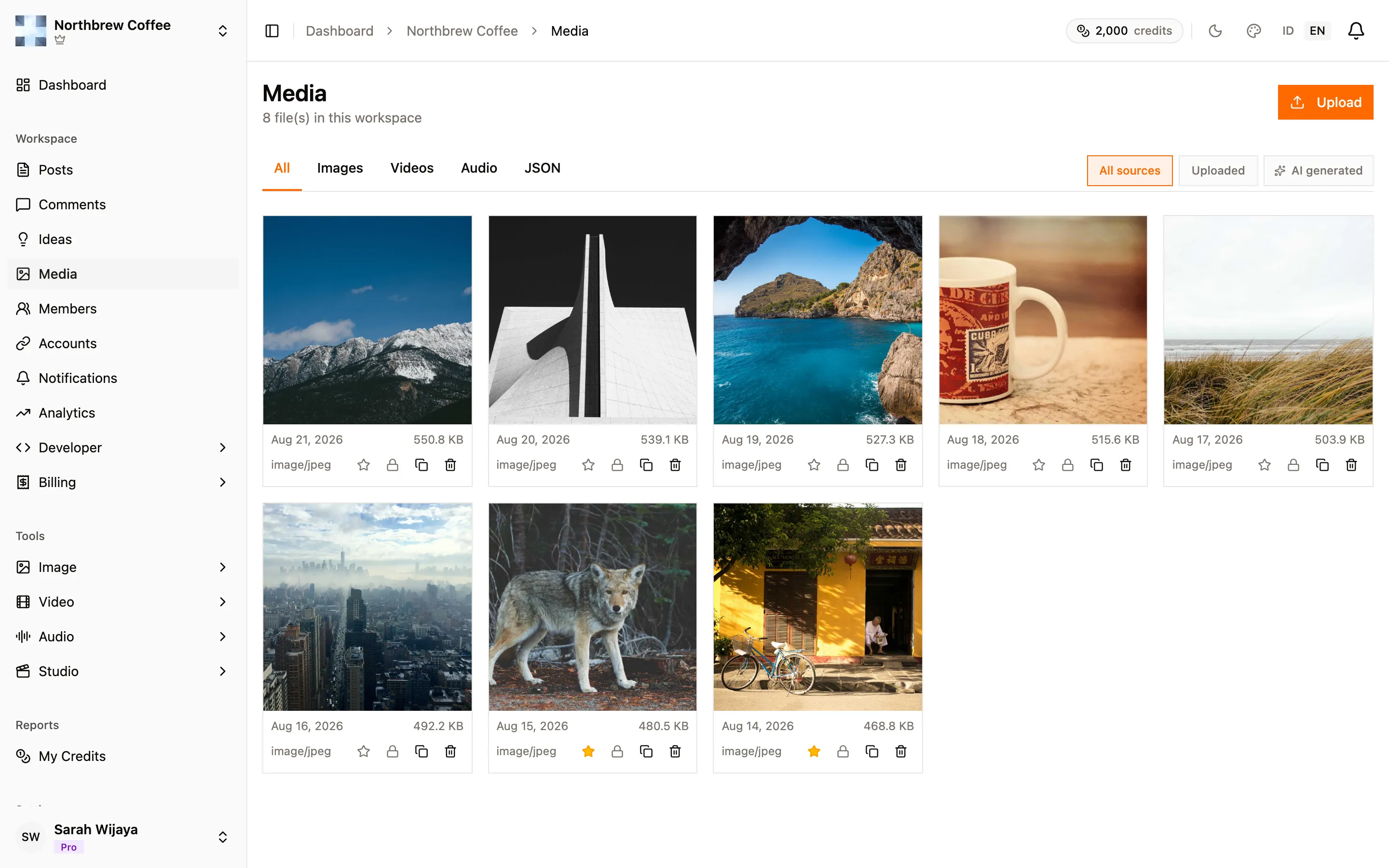
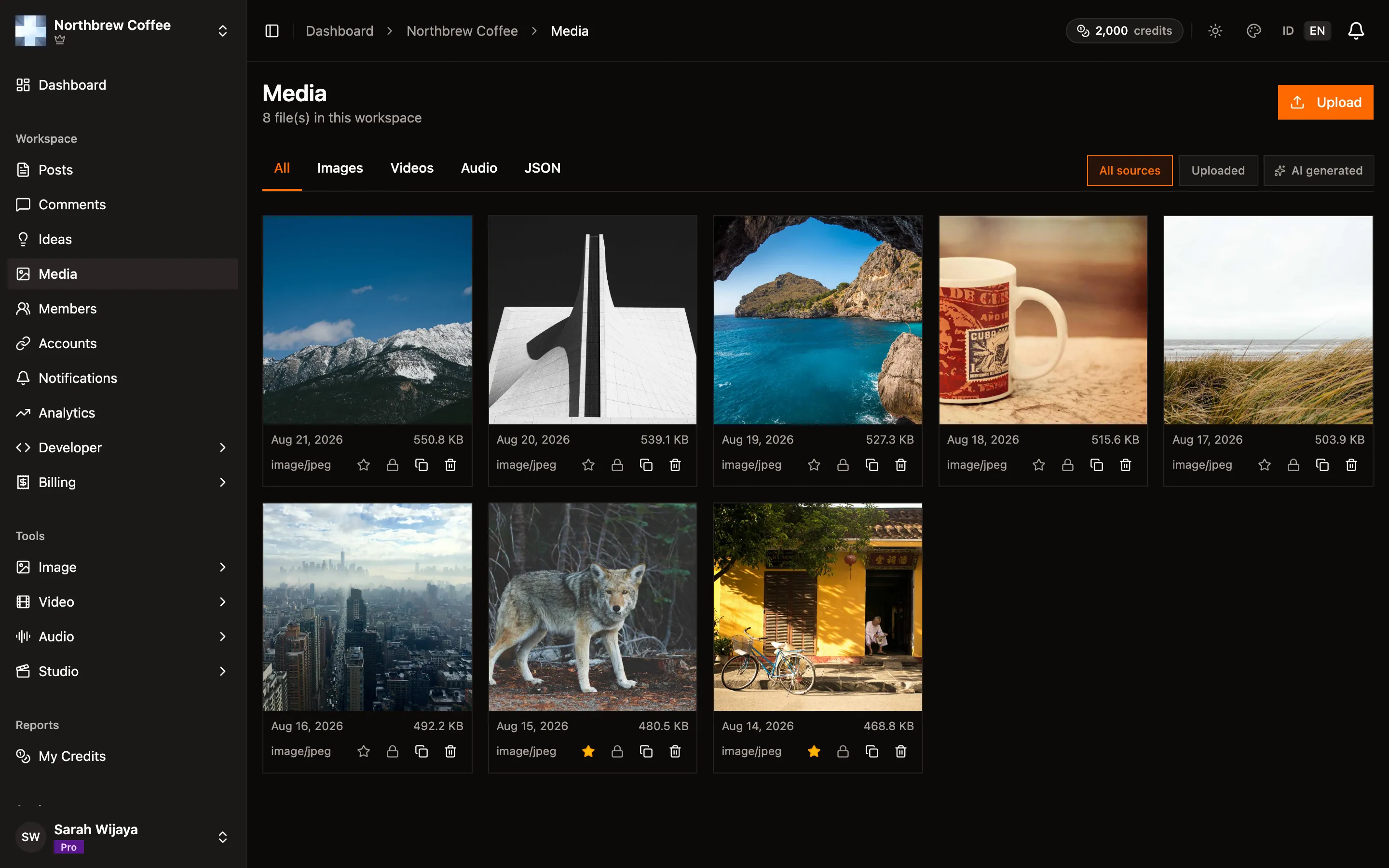
Everything you upload to a post lands in the workspace’s media library, so the second time you need a photo you pick it instead of finding the file again. It’s under Media in the sidebar.
Finding things
Section titled “Finding things”- The tabs across the top filter by kind: All, Images, Videos, Audio, JSON.
- On the right, filter by where a file came from: All sources, Uploaded, or AI generated. Anything made by the AI tools lands here too, which is usually how you find a generated image again a week later.
- The count under the heading is the whole workspace, and the grid pages through it rather than scrolling forever.
What you can do with a file
Section titled “What you can do with a file”Each tile shows the date, file size and type, and four actions:
- Star marks a favourite, for the handful of files you reuse constantly.
- Lock protects a file from being deleted. A locked file’s delete button is disabled until you unlock it, which is worth doing for a logo that several scheduled posts depend on.
- Copy copies the file’s URL.
- Delete removes it.
Using it in a post
Section titled “Using it in a post”In the composer, the Media tab opens the same library alongside the other ways to add media: upload a file, paste a URL, or search Unsplash and Pexels without leaving the page. Stock photos keep their attribution automatically, so the credit line is added for you.
See compose a post for how media behaves once it’s attached, including drag-to-reorder.
Storage
Section titled “Storage”Storage is part of your plan, and it’s one allowance shared across all your workspaces: 1 GB on Starter, 2 GB on Creator, 15 GB on Pro and 75 GB on Agency. When it runs out, uploads fail with “Storage full. Delete files or add storage to keep uploading” and the fix is exactly that: clear out what you don’t need, move up a plan, or, from Creator up, add a storage pack of 50, 150 or 350 GB from the Billing page. You can hold up to two packs at once.